To tell if a remote employee is working or just idle, use a mix of clear output expectations, attendance data, app and website activity, productivity trends, and exception checks.
A single idle status is not enough. The useful signal is whether work activity, schedules, and deliverables line up over time.
How can you tell if a remote employee is working?
The practical answer is to compare expected work with verified work signals from the company device.
For most remote teams, that means checking whether the employee logged in for the scheduled day, used the tools required for their role, stayed active during normal work blocks, and delivered the work they were assigned.
That does not mean treating every quiet period as a problem. Remote work includes meetings, phone calls, reading, planning, and offline work.
The goal is to spot patterns that need a conversation, not to judge someone from one green or gray status dot.
- Start with the work standard. Define the employee’s schedule, role expectations, deliverables, and acceptable break patterns before you review activity data.
- Check attendance first. Look at device login and logoff records to confirm whether the employee started, ended, and paused work around the expected times.
- Review productive application and website use. Compare the employee’s activity to the tools their role actually requires, such as CRM, accounting, ticketing, design, development, or communication apps.
- Look for idle patterns, not isolated idle moments. A ten-minute idle period may be normal. Repeated long idle blocks during scheduled work time deserve a closer look.
- Compare activity with output. If the work is getting done well, low keyboard or mouse activity may simply mean the job is not constant screen work. If output is slipping and device activity is low, you have a clearer coaching signal.
- Use screenshots only for exceptions. Screenshots can clarify whether activity is work-related, but they should support a specific review process rather than replace management judgment.
What data should you check before deciding someone is idle?
Use several signals together. The strongest review combines attendance, activity type, productivity trend, and job output.
Any one metric can mislead you if it is read alone.
| Signal | What it can show | What it cannot prove by itself |
|---|---|---|
| Login and logoff times | Whether the employee was present on the device during scheduled work hours | Whether the time was productive |
| Idle time | Periods without keyboard or mouse activity | Whether the person was working offline, on a call, or reading |
| Application use | Whether role-specific tools were opened and used | The quality of the work produced |
| Website activity | Whether time went to work sites or distracting sites | Intent; some research or support tasks require unusual websites |
| Productivity score trends | Whether activity is improving, dropping, or out of pattern for the role | Whether an employee is good or bad at their job |
| Deliverables | Whether assigned work was completed on time and to standard | What happened during every minute of the day |
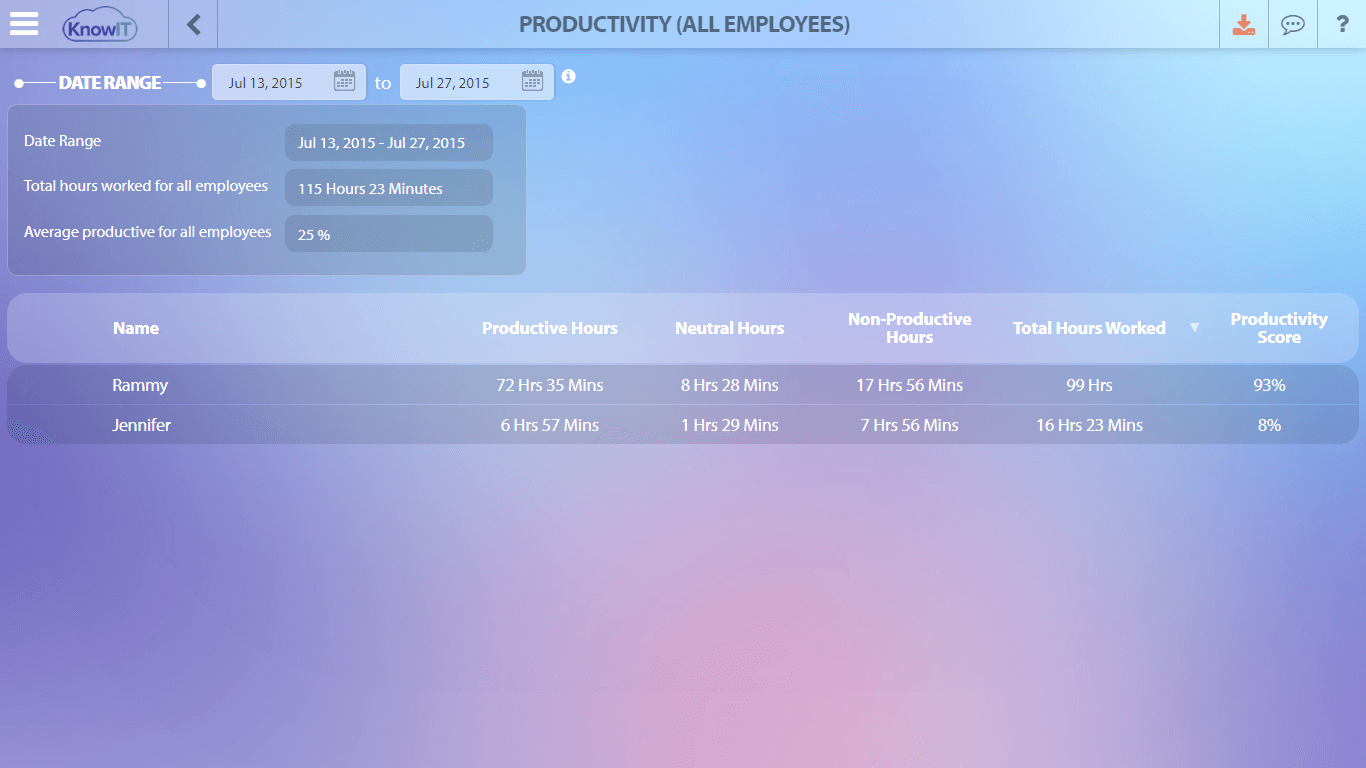
KnowIT supports this kind of review with attendance tracking through device login and logoff, productivity measurement with normalized scores, application and website usage history, and pre-made management reports.
Those reports are useful because they keep the discussion on patterns instead of one-off assumptions.
How do you check if an employee is idle without micromanaging?
Set the rule before you check the report.
For example: “During scheduled work blocks, we review long idle periods, non-work website patterns, and missing deliverables. Normal breaks, meetings, and approved offline tasks are not treated as problems.”
This makes monitoring feel like an operating process instead of a surprise audit. It also protects managers from overreacting to normal work rhythms.
A designer may spend time sketching away from the computer. A sales rep may be on phone calls. A support employee may be active almost continuously.
The same idle threshold should not be applied blindly to every role.
How can KnowIT help identify idle time on remote devices?
KnowIT can help managers review whether remote employees are active on company devices by combining attendance, productivity, app usage, website usage, and screenshot context.
For a small business, that usually means installing the license on the work device, logging into the secure online portal, and using the built-in reports rather than building a reporting system from scratch.
For example, a manager could review a remote employee whose output dropped for two weeks.
First, they check attendance reports to see whether login and logoff times changed. Then they review application and website history to see whether the employee is spending scheduled hours in work tools or unrelated sites.
If the pattern is still unclear, screenshot recording can provide limited context for specific applications or time periods.
KnowIT is built for non-technical users, includes pre-made management reports, and offers a free installation service if setup help is needed.
It also has a forever-free Free Edition for up to 5 devices after the 2-week Complete Edition trial if no paid plan is chosen.
Can you see what apps and websites a remote employee used?
Yes, if monitoring is installed on the company device and your policy allows it.
KnowIT can track application usage history and web browser activity across supported browsers, including Chrome, Firefox, Opera, Brave on Windows, Edge on Windows, Internet Explorer on Windows, and Safari on Mac.
This is often more useful than a raw idle number.
If a remote employee is active for eight hours but most activity is unrelated to the job, the productivity problem is different from someone who has long idle blocks because they are taking calls or doing approved offline work.
Can you see when a remote employee logs in and out?
Yes. KnowIT includes attendance tracking through device login and logoff, plus work schedules, break times, holiday accounting, and automatic attendance reports.
That gives managers a straightforward way to see whether the employee was present for the expected workday.
Attendance data should be treated as the baseline, not the final answer.
Someone can be logged in and not working, or logged out while handling an approved customer call. The report is most useful when compared with the employee’s schedule, role, and completed work.
Can screenshots show whether someone is working?
Screenshots can help confirm what was happening on a work device at a specific time, especially when app or website data is ambiguous.
KnowIT supports screenshot recording by interval or on demand, including per-application screenshot recording.
Use screenshots carefully. They are best for exception review, security investigations, or clarifying repeated unexplained patterns.
For everyday management, productivity reports, attendance reports, and application usage are usually less intrusive and easier to discuss with employees.
What is the difference between idle and unproductive?
Idle means the device is not showing activity. Unproductive means the activity does not match the employee’s role or expected work.
Those are related, but they are not the same.
A remote employee can be idle while doing legitimate work away from the keyboard. They can also be highly active while spending time on unrelated sites.
That is why the best review asks three questions: Was the person present? Was the device activity work-related? Was the assigned work completed?
What should you do when the data suggests a remote employee is idle?
Start with a conversation, not an accusation. Bring the pattern, ask for context, and compare it with expectations.
A simple script works well:
“I noticed several long idle blocks during scheduled work time last week, and the project update was also late. Is there context I should know about, such as calls, offline work, workload issues, or a schedule mismatch?”
If the explanation is reasonable, update the schedule, reporting process, or performance expectations.
If the pattern continues, move to a documented coaching plan with clear expectations: work hours, response times, deliverables, and how activity will be reviewed.
What legal and consent rules should employers consider?
Employee monitoring rules vary by country, state, industry, and device ownership.
A safe starting point is to monitor only company-owned devices, tell employees what is collected, explain why it is collected, and put the policy in writing.
If employees work in multiple states or countries, ask counsel to review the policy before rollout.
For hourly employees in the U.S., time records and idle reviews also intersect with wage-and-hour rules.
The U.S. Department of Labor explains that work that is suffered or permitted must be counted as paid work time, and short rest breaks are commonly counted as paid working time.
In plain terms, do not use idle reports to erase compensable time without checking the facts and the applicable rules.
When is employee monitoring overkill?
Monitoring is overkill when the problem is really unclear expectations, poor task management, or a role that cannot be measured well through device activity.
If employees have clear goals, meet deadlines, protect company data, and stay responsive, heavy review of idle time may add friction without improving performance.
It is also overkill for personal devices unless your legal basis, consent process, and technical boundaries are very clear.
In many small businesses, the cleaner approach is to monitor company devices used for company work and keep the policy narrow: productivity, attendance, security, and data protection.
The best answer is a pattern, not a status dot
To tell if a remote employee is working or idle, look for a pattern across attendance, app usage, website usage, productivity reports, screenshots when needed, and actual deliverables.
Idle time is a clue. Work quality and role context turn that clue into a fair management decision.
KnowIT gives small businesses a practical way to review those signals from company Windows, Mac, and Android devices without needing an IT team.
Use it with a clear policy, explain the process to employees, and treat the data as the start of a better conversation about work, not the whole conversation.
FAQ
How can I tell if a remote employee is idle?
Look for repeated idle blocks during scheduled work time, then compare them with attendance, app usage, website activity, screenshots when appropriate, and completed work. Idle time by itself is only a clue; the pattern around it matters more.
Does idle time mean an employee is not working?
No. Idle time only means the device is not showing keyboard or mouse activity. The employee may be on a call, reading, planning, meeting with a customer, or doing approved offline work.
What is a reasonable amount of idle time for remote employees?
There is no universal number that works for every role. A support agent, developer, designer, salesperson, and manager can all have different work rhythms, so idle-time expectations should be tied to the job, schedule, and output standards.
Can employers monitor remote employees legally?
Often yes, especially on company-owned devices, but the rules depend on location, industry, device ownership, notice, consent, and the type of data collected. Use a written policy and get legal review when employees work across states or countries.
Should screenshots be used to check whether someone is working?
Screenshots are best used for exception review, investigations, or clarifying repeated unexplained patterns. For routine management, attendance, productivity, app usage, website activity, and deliverables are usually better first signals.
What should I do before confronting a remote employee about idle time?
Review the pattern, check whether expectations were clear, compare the data with completed work, and ask for context first. The goal is to understand whether the issue is performance, scheduling, workload, tool access, or normal offline work.
![KnowIT vs Teramind: Full Comparison for SMBs [2026]](https://blog.digitalendpoint.com/wp-content/uploads/2026/07/KnowIT-vs-Teramind.webp)