The short answer: you need endpoint file-transfer logging
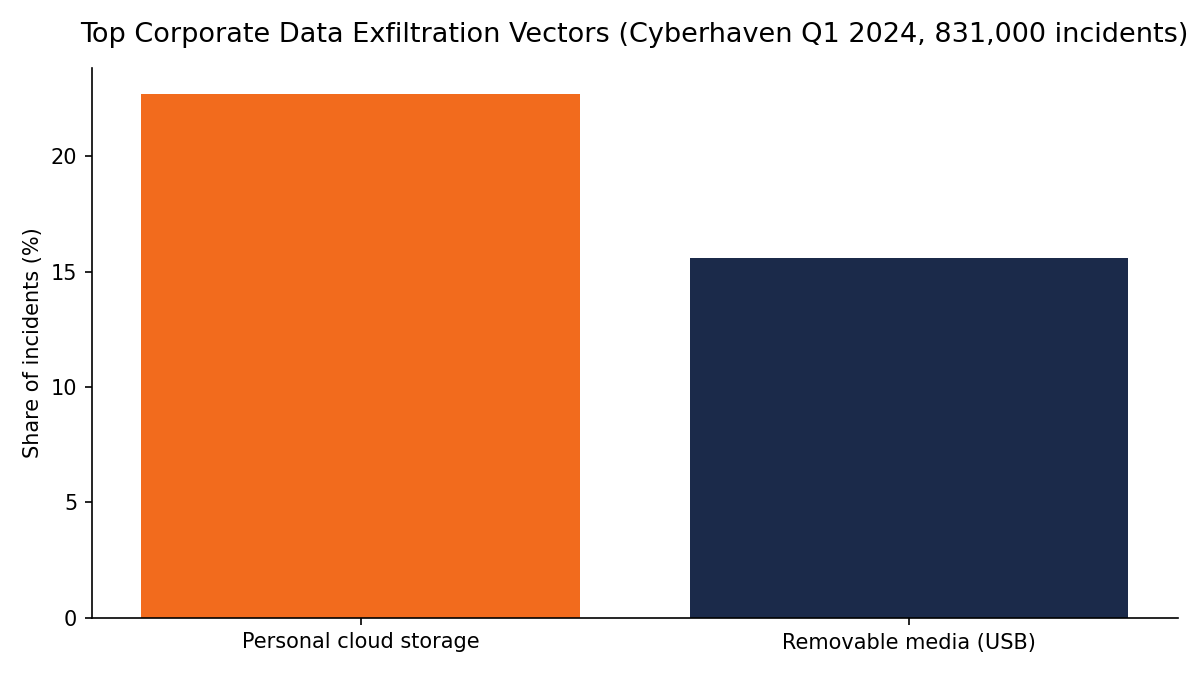
Personal cloud storage accounts for 22.7% of corporate data exfiltration incidents, and removable media like USB accounts for 15.6% — the top two vectors, according to an enterprise insider-risk report that analyzed 831,000 real incidents.
To see what files employees copy to USB or upload to the cloud, you need endpoint monitoring software installed on the work device that logs file transfers across USB, web, IM, and cloud channels.
Once installed, it records each copy, move, or upload with the file name, the device, and the timestamp — and it can alert you in real time when a sensitive file leaves through a watched channel.
Built-in OS tools won’t show this reliably. Windows and macOS don’t keep a clean, searchable record of every file copied to a USB stick or uploaded to a personal Google Drive, so without endpoint logging you’re guessing.
Why USB and cloud are the two channels worth watching
These two vectors aren’t just common — they spike at predictable moments. The same enterprise insider-risk report found that in the week before an employee leaves, the likelihood of them copying source code rises 348%, and sensitive project files rise 440%.
When office workers log in from offsite, they are 510% more likely to exfiltrate data than when they’re onsite.
Risk concentrates around departures and remote sessions, so monitoring is most useful when aimed at those moments rather than at everyone, all the time.
If you’re already watching for signs an employee is job hunting, file-transfer visibility is the natural companion control.
Here’s what that looks like in practice: a salesperson plans to resign next week and join a competitor. The Friday before, they plug in a USB stick and copy the full client list, pricing sheets, and a handful of proposal templates.
Without file-transfer logging, that copy is invisible — you only find out when the accounts start leaving.
USB is also a two-way risk. Data leaves through the port, but malware enters through it too. Honeywell’s 2024 USB Threat Report found that 51% of malware is designed to spread via USB, up from 9% in 2019. Watching removable media protects in both directions.
Personal webmail is the other major channel worth watching — see our guide on detecting personal email use on company devices for that side of the picture.
What good file-transfer visibility actually shows you
A real monitoring tool captures more than “a file moved.” KnowIT logs file transfers across USB, web, IM, and cloud — both uploads and downloads — so you can see where a file went, not just that it left.
It also records file modifications: creation, copy, deletion, rename, move, and cut. On Windows, it keeps a USB device insertion and removal history, so you can see which stick was plugged in and when.
Print tracking covers an often-overlooked leak channel — printing a client list is just as effective an exfiltration method as copying it to a drive.
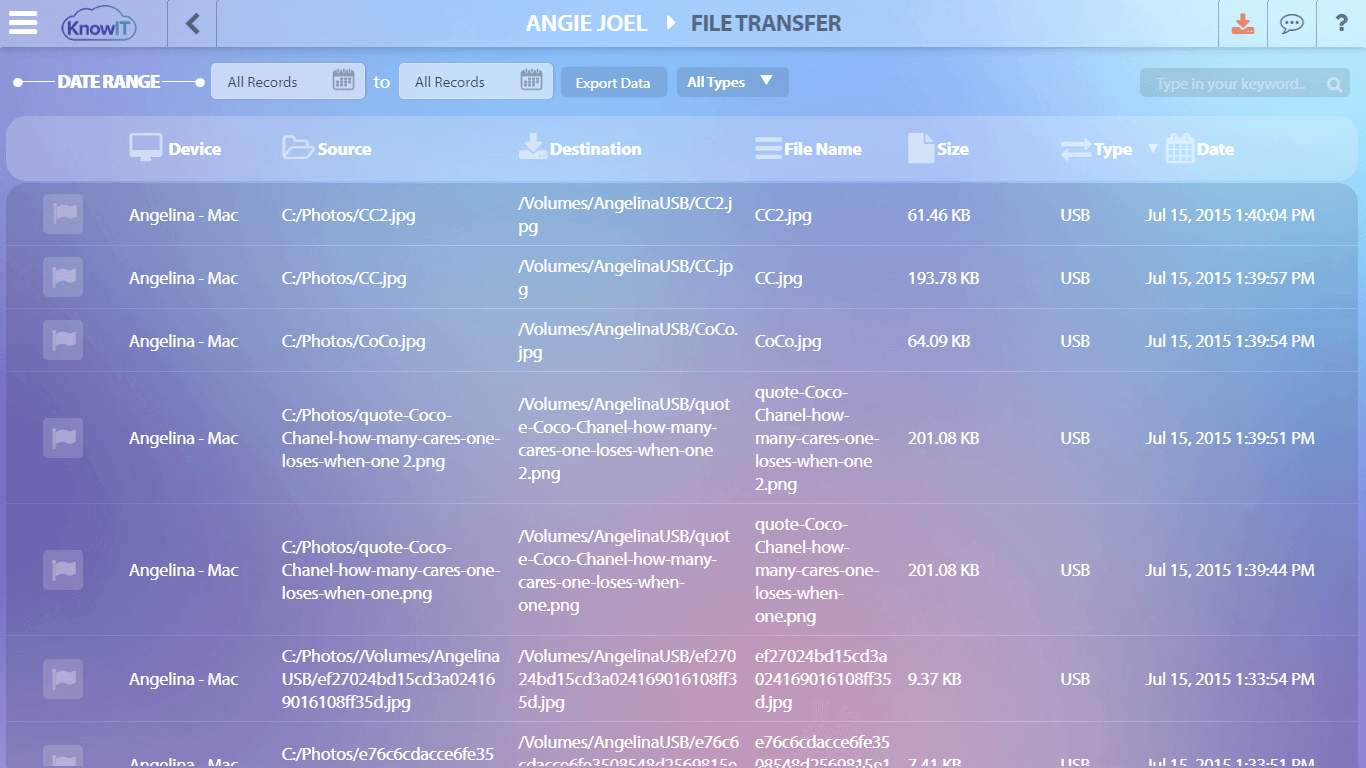
When comparing tools, this is the level of detail to look for. Many monitoring products focus on screenshots and productivity scores but log file movement thinly — worth checking in any ActivTrak vs Teramind comparison.Full file transfer blocking is Windows-only on KnowIT (DLP and Complete plans). Pairing file-transfer logs with seeing employee screens remotely gives you visual confirmation alongside the activity record.
How to set it up step by step
You don’t need an IT department. The path from zero to seeing file activity takes a few minutes:
- Start the 2-week free Complete trial. If you don’t choose a paid plan afterward, the account moves automatically to the forever-free Free Edition (up to 5 devices, no expiry).
- Log into your secure online portal.
- Install the license onto the target device — or use the free installation service if you’d rather not handle setup yourself.
- Run the walkthrough wizard to configure file tracking.
- Open the file transfer page or the pre-made reports to review activity as it’s recorded.
There’s no license minimum — buy one license or one hundred. For most owners, installing on a single at-risk device first is the fastest way to see what the data looks like.
Setting alerts so you catch the moment a file leaves
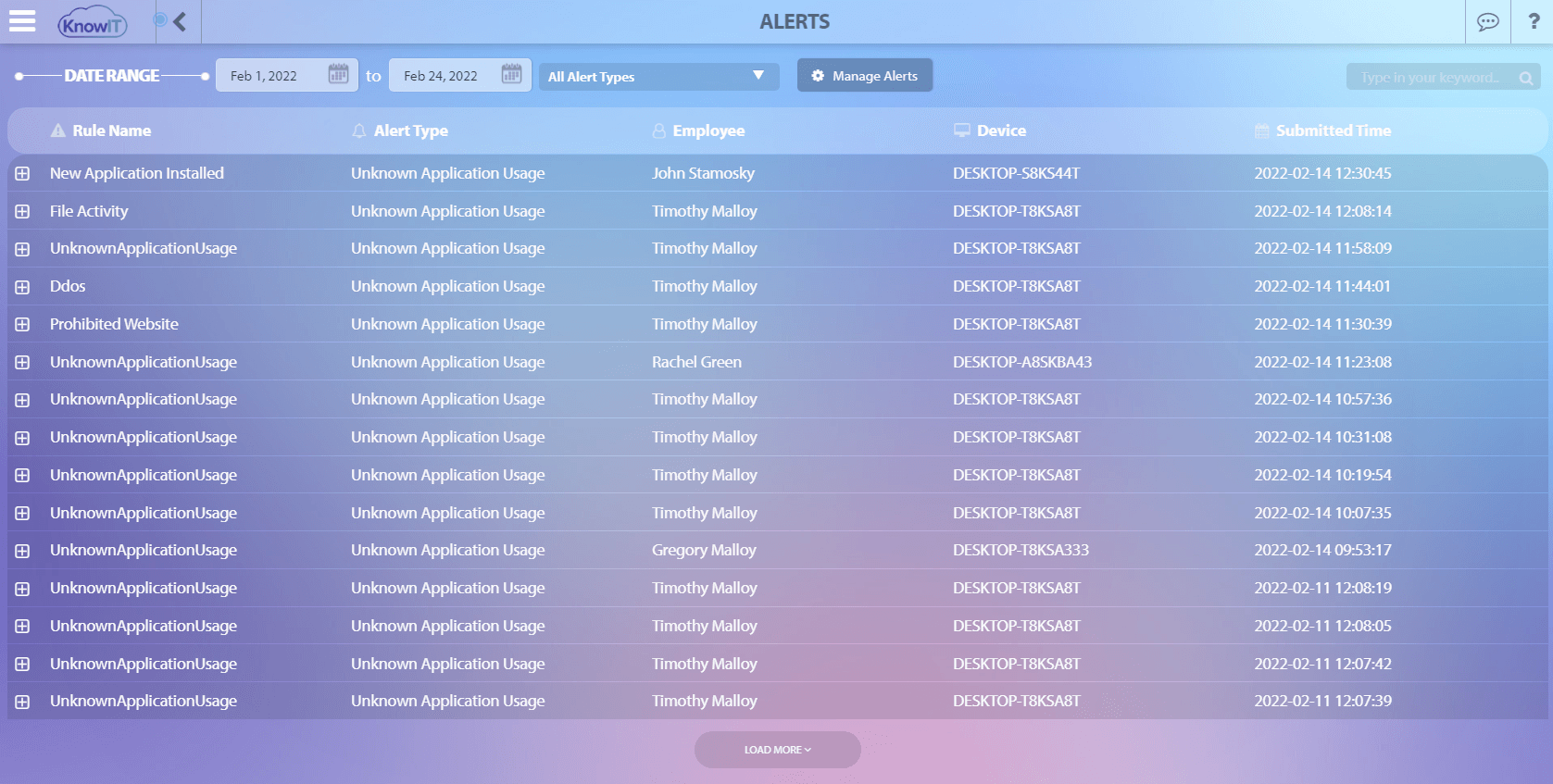
Logs tell you what happened after the fact. Alerts tell you while it’s happening. KnowIT supports file transfer, file activity, and suspicious file transfer alerts, so you’re notified when files move through a watched channel.
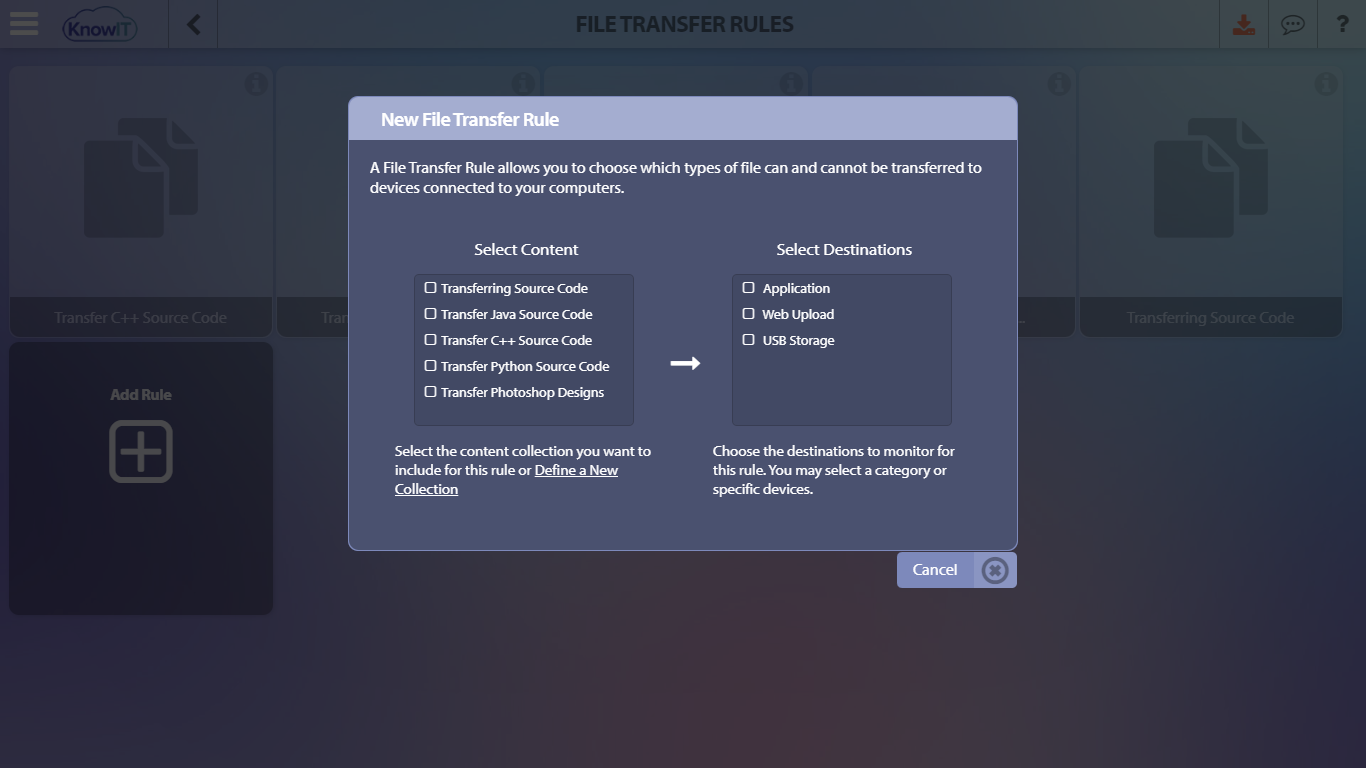
Keyword usage alerts let you flag sensitive file names or terms — so a file called “client_list” or “salary” moving to USB triggers a notification. File transfer rules let you target specific channels rather than alerting on everything.
Keep alerts useful by focusing them where that enterprise insider-risk data says risk concentrates — departing employees and offsite sessions — rather than generating noise across the whole team.
Blocking transfers vs. just monitoring them
Monitoring shows you what’s happening; blocking stops it. On Windows, the DLP and Complete editions can block USB, network storage, and web file transfers, and can block specific apps from accessing specified file types.
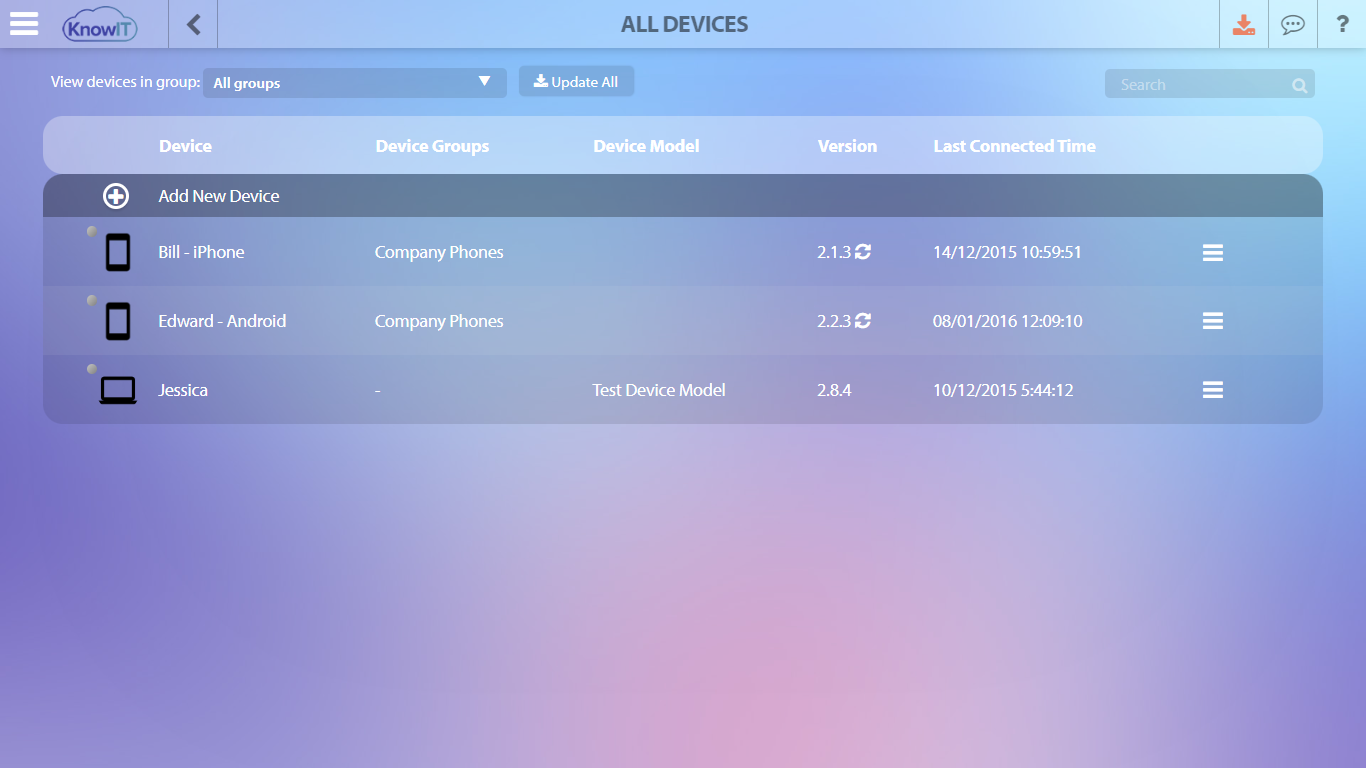
Peripheral management (also Windows-only) lets you restrict which devices are allowed to connect at all.
A sensible sequence: monitor first, then block. Watch for a couple of weeks to learn what normal file movement looks like, then apply blocks where justified — for example, disabling USB transfers on a finance workstation.
Blocking everything by default tends to break legitimate work and push people toward workarounds. Blocking and peripheral management are not available on Mac or Android.
When full file-transfer monitoring is overkill
Not every team needs the full setup. A small team handling no regulated or sensitive data may only need USB device insertion history and a periodic review of the file transfer report — enough to spot something unusual without watching every transfer.
The Free Edition (up to 5 devices, no expiry) is a reasonable starting point for very small teams that want basic visibility before committing to a paid plan.
Whatever level you choose, pair it with a clear, written policy that tells employees what’s monitored on company devices. Monitoring works best when it’s transparent, and a communicated policy is the foundation — though consent and notice requirements vary by jurisdiction, so check what applies to you.
Your next step
Start the free Complete trial and install it on one at-risk device first — a departing employee’s machine, or the workstation holding your most sensitive files. After a few days, open the file transfer report to baseline what normal activity looks like.
Once you know the baseline, you’ll know exactly where to set alerts or apply blocking.

![KnowIT vs Teramind: Full Comparison for SMBs [2026]](https://blog.digitalendpoint.com/wp-content/uploads/2026/07/KnowIT-vs-Teramind.webp)