The two ways to see employee screens remotely
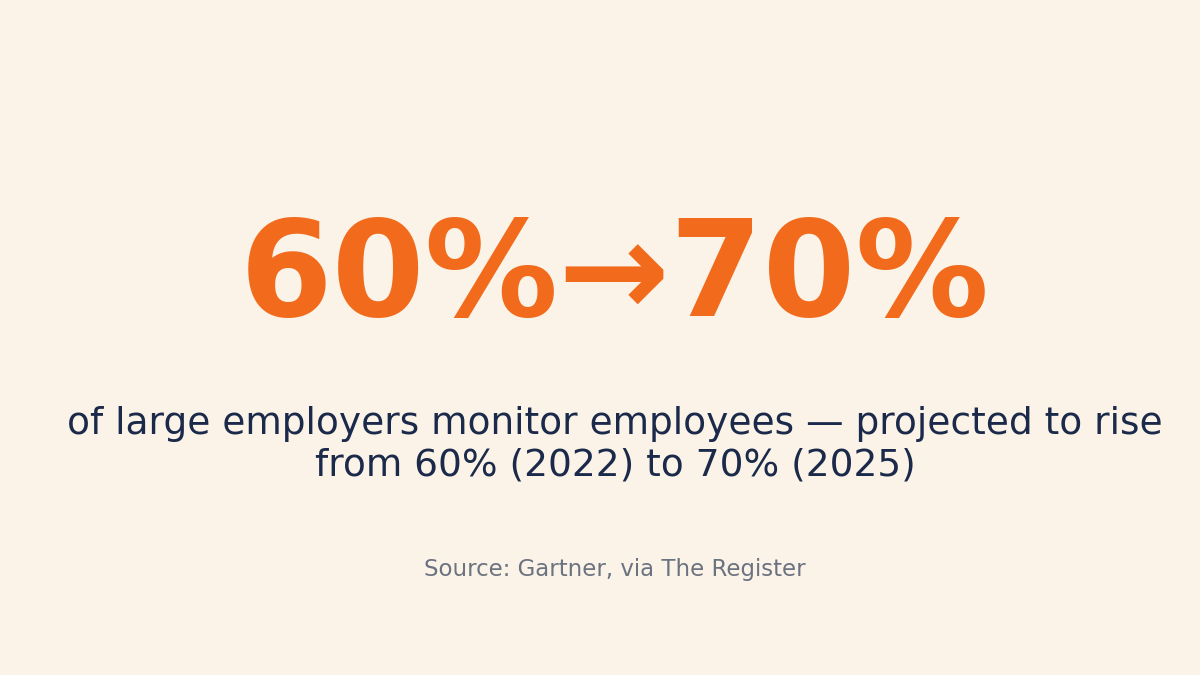
A 2022 Gartner study found that 60% of large employers already monitor their employees, with that figure expected to reach 70% by 2025 — so wanting visibility into employee screens is now mainstream, not extreme.
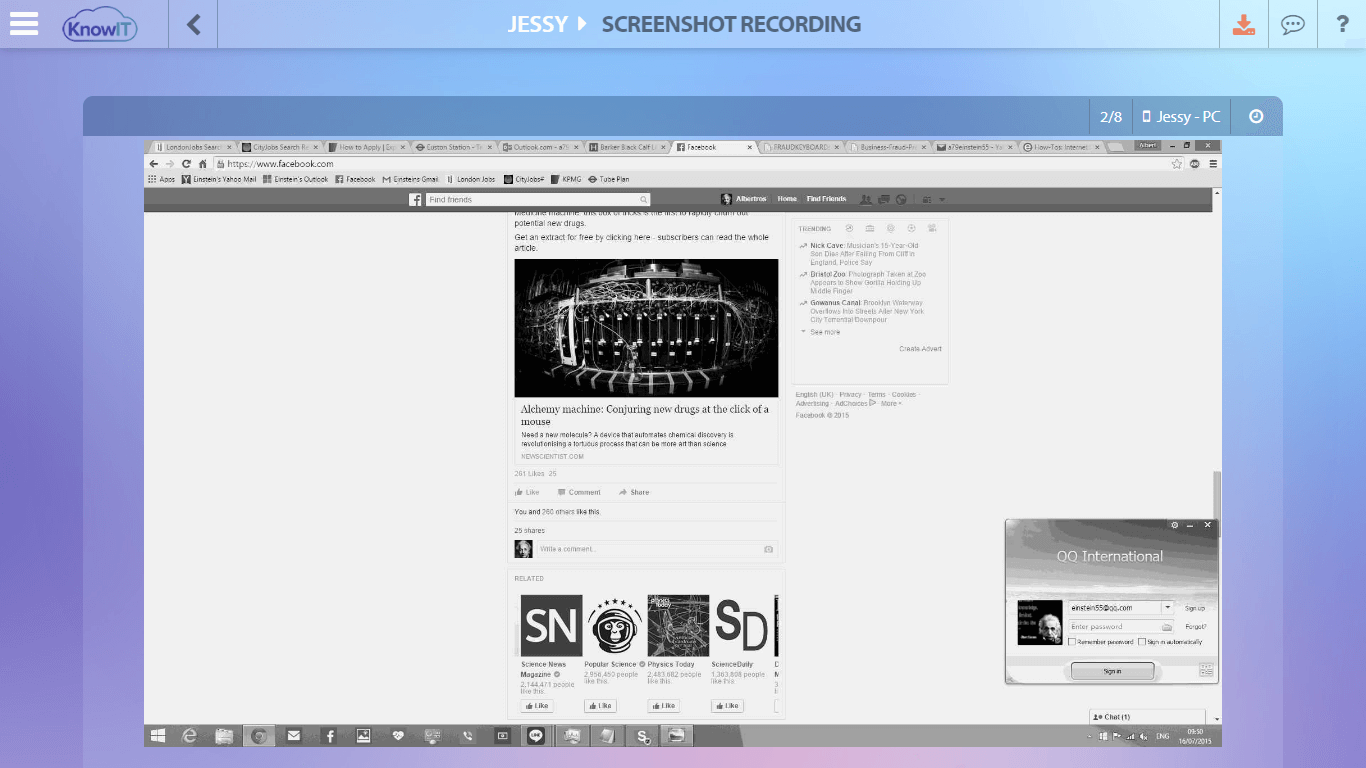
You can do it in two main ways: live screen viewing (a real-time remote desktop session you actively watch) or screenshot-based monitoring (software that automatically captures images of the screen at set intervals or on demand and stores them for you to review later).
For most businesses that want documented, reviewable visibility into productivity and policy compliance, screenshot-based monitoring is the practical choice — it runs in the background, captures screens without anyone watching live, and keeps the evidence so you can review it on your own schedule.
KnowIT uses this screenshot-based approach. It does not offer live screen viewing, screen recording, session replay, or continuous video — it captures periodic screenshots plus the activity context around them.
Why screenshot-based monitoring fits most businesses
Live viewing requires someone to sit and watch a feed in real time. That doesn’t scale, and it leaves no record you can act on later.
Screenshots flip the model: they create reviewable evidence you can check when you need it, search through after the fact, and keep as documentation for compliance or disputes.
This matches what companies are actually rolling out. A Great Place to Work study found 46% of employees said their company introduced or increased productivity monitoring software in the past year — the demand is for documented visibility, not constant live observation.
There’s a security angle too. Screen and activity visibility helps surface unauthorized or risky software running on company devices. A Microsoft-funded IDC study found 36% of pirated software downloads lead to malware infection, and CISA, the NSA, and MS-ISAC have warned that attackers increasingly abuse legitimate remote-access tools that can sit unnoticed on machines.
Seeing what’s on the screen is part of catching what shouldn’t be there.
KnowIT captures screenshots at intervals or on demand, and can do so per application — so you focus on the apps that matter rather than collecting noise.
If you’re trying to answer that question for a distributed team, our guide on how to tell if a remote employee is working or just idle is a good next read.
How to set up screenshot-based screen monitoring
Setup takes a few minutes and no IT background. Here’s the order:
- Start the 2-week free trial of KnowIT’s Complete Edition.
- Log into your secure online portal.
- Install the license onto the target work device — or use the free installation service if you’d rather not handle it yourself.
- Run the walkthrough wizard to configure screenshot capture and other key features.
- Start receiving screenshots, activity data, and reports.
During setup you choose how screenshots are taken: at a fixed interval, on demand, or tied to specific applications. There’s no license minimum — buy one license or one hundred — and it works on Windows and Mac, with Android monitoring available on Employee Monitoring and Complete plans.
What you can see alongside the screenshots
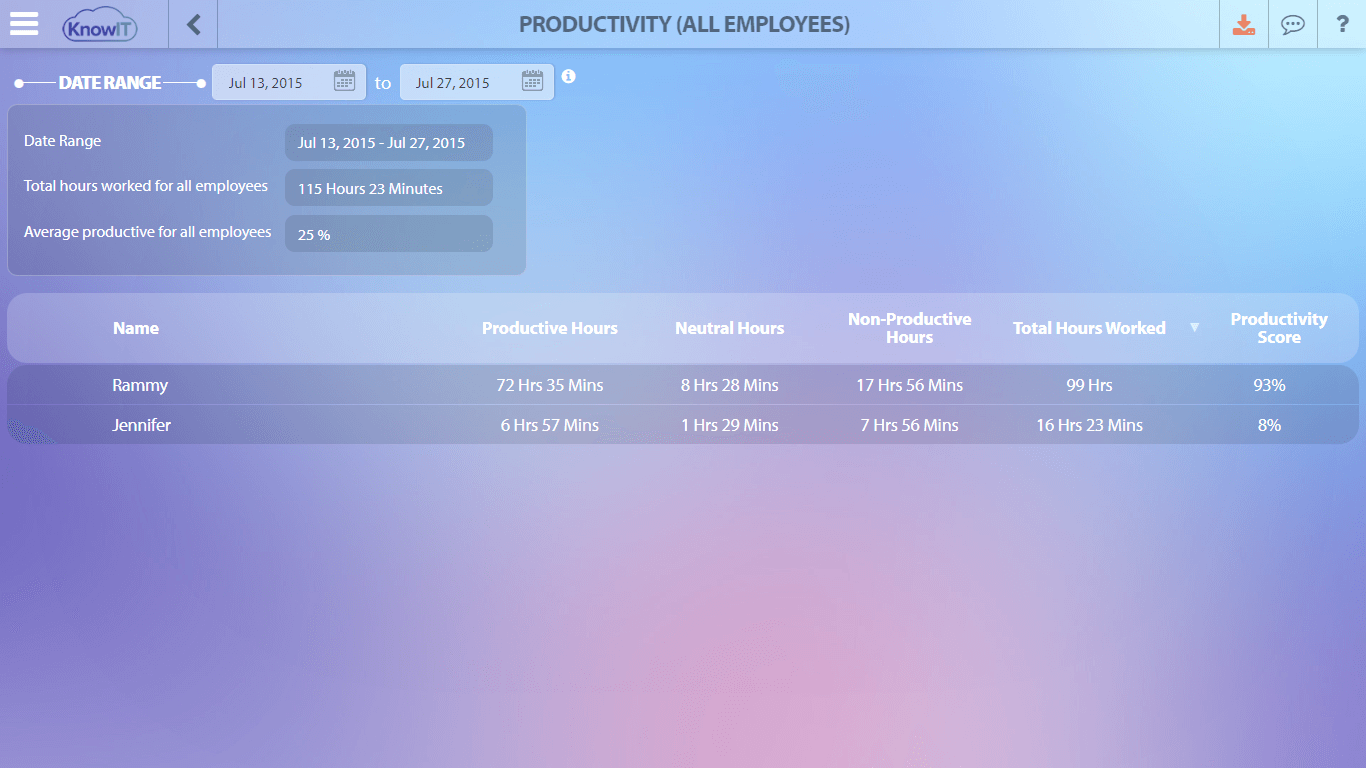
Screenshots are most useful when you can see what was happening around them. KnowIT pairs each capture with context: applications and websites in use, productivity scores by role or department, attendance from device login/logoff, and file transfer and modification activity.
That combination tells you more than a live feed alone. A screenshot shows the moment; the activity log shows the pattern — which apps dominate the day, which sites pull focus, and when files move where they shouldn’t.
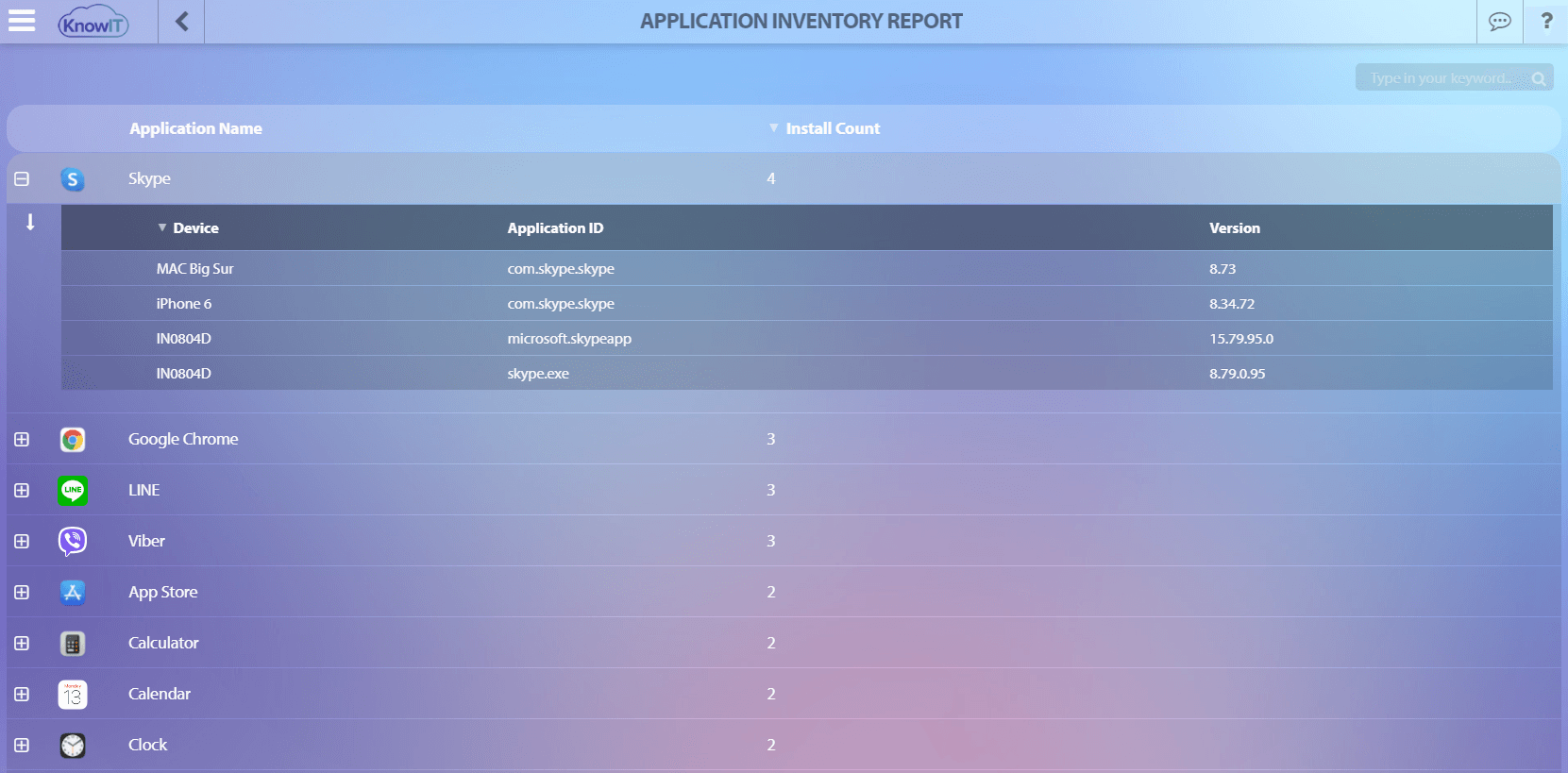
It also surfaces software you didn’t know was there. Shadow IT is a real problem — Productiv found that 42% of the average company’s applications are unsanctioned. KnowIT’s installed-application and inventory reports give you a clear list of what’s actually running across devices.
The legal and ethical limits you must respect
Monitoring employee screens is legal in many places when done correctly, but how you do it matters. The practical baseline: put a written monitoring policy in place, notify employees that monitoring happens, and limit it to work devices used for work purposes.
Rules differ by region, and Europe sets a higher bar around proportionality and consent. If you operate in or employ people in the EU, read our guide to EU employee monitoring laws before you switch anything on.
This is practical guidance, not legal advice. For your specific situation and jurisdiction, check with a qualified employment lawyer.
When live screen viewing is overkill (and when it isn’t)
Most small businesses don’t need real-time screen control. Take a six-person remote team with no full-time IT, where the manager wants to confirm work is happening and that sensitive files aren’t leaving the company.
Periodic screenshots plus activity context answer both questions — full live remote-control adds cost and friction without adding insight.
Live viewing genuinely helps in two specific cases: real-time troubleshooting (walking someone through a problem on their actual screen) and active security incident response (watching a session as it unfolds).
For everyday productivity review and compliance evidence, periodic screenshots are enough — and easier to act on, because they’re stored and searchable rather than gone the moment you look away.
KnowIT is built for screenshot-based visibility and activity context, not real-time remote control. If your primary need is live remote desktop, that’s a different category of tool.
Getting started
Start with the 2-week free Complete trial to set up screenshot capture and see the activity reports on a real device. If you don’t pick a paid plan afterward, the account moves to the forever-free tier — up to 5 devices, no expiry.
No IT knowledge is required, and a free installation service is available if you’d rather not handle setup yourself.
![KnowIT vs Teramind: Full Comparison for SMBs [2026]](https://blog.digitalendpoint.com/wp-content/uploads/2026/07/KnowIT-vs-Teramind.webp)